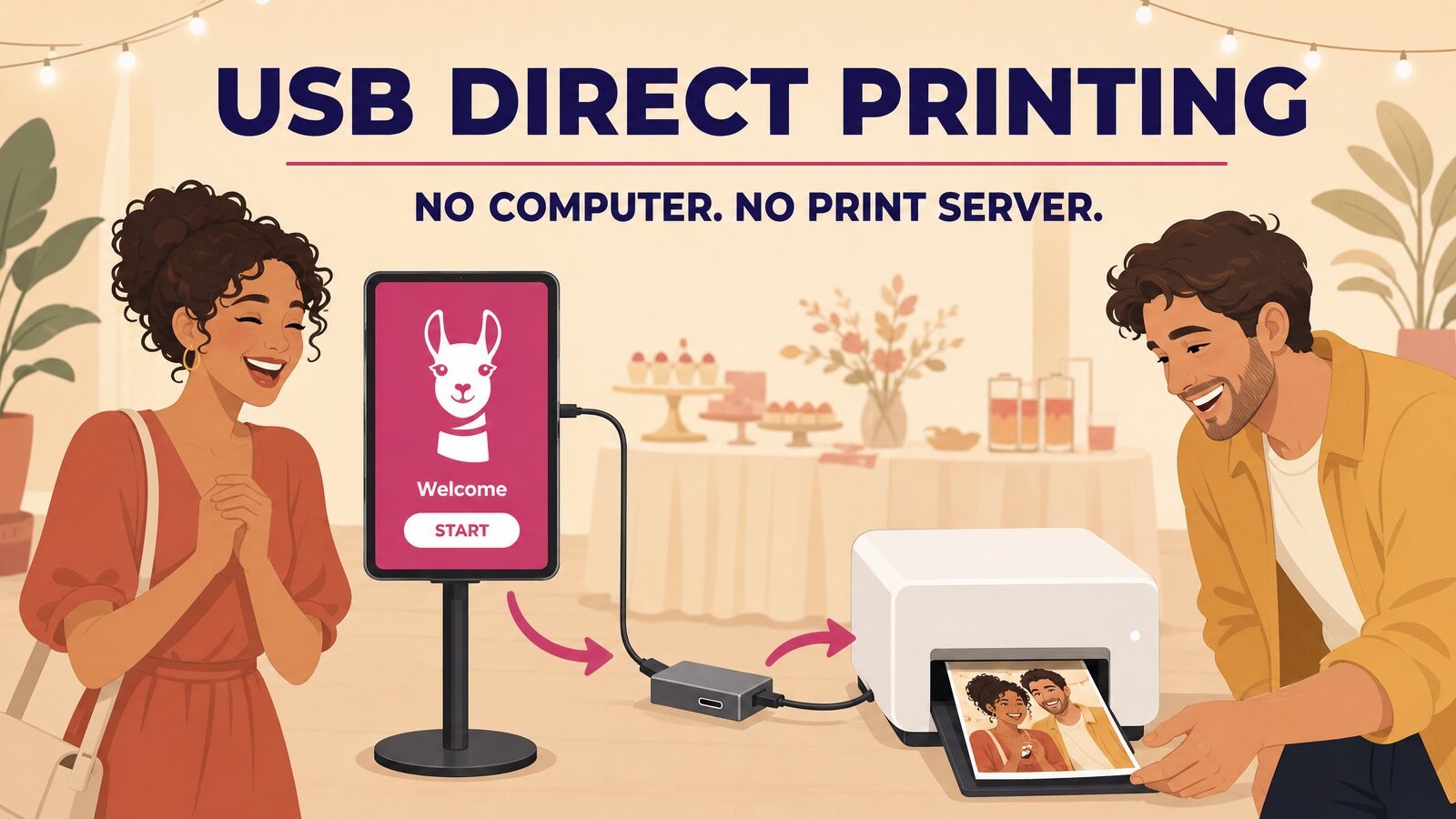
Plug your printer into your iPad or your Mac and start handing out prints. LumaBooth 5.3 introduces USB Direct Printing, which sends photos straight to a DNP, Citizen, or HiTi dye-sub printer over a single USB cable. No print server, no WCM, nothing to install.
Why a Cable Beats a Network
Every photo booth operator has lived this one. The venue Wi-Fi buckles when 200 guests arrive, the travel router drops, and suddenly the prints stop while a line forms.
A cable does not care about any of that.
- Nothing rides on the venue’s network. No hotspot, no travel router, no IT desk to call.
- No dropped connections. A cable cannot fall off a network in the middle of your event.
- Faster. Photos go straight to the printer with nothing in between.
- Simpler setup. Plug in, pick your print method, and you are printing.
What You Need
- LumaBooth 5.3 or later, on an iPad or a Mac.
- On iPad, an Apple silicon model. iPad Pro (M1 or later) and iPad Air (M1 or later), running iPadOS 16 or later. It does not work on iPhone or on older, non-M iPads. You also switch on the LumaBooth Printer Driver, a one-time toggle in Settings that the app walks you through.
- On Mac, macOS 12 or later. No driver to enable, no chip requirement. Connect the printer and LumaBooth finds it.
- A way to plug the printer in. Your printer’s cable ends in a rectangular USB-A plug, so a hub or adapter goes in between on any device that only has USB-C ports.
Why You Want a Hub, Not Just an Adapter
This one is mostly for iPad users. If your Mac has a spare USB-A port, the printer’s cable goes straight in and you can skip ahead. On iPad, a hub does three jobs at once, and only the first is obvious.
It bridges the cable, so your printer’s USB-A plug goes straight in exactly as it came in the box. It lets your iPad charge while it prints, which matters when you are running a booth all evening and the printer is occupying your only port. And it leaves room for a camera on the same hub, so a Canon, Nikon, or Sony body, the printer, and power all share one connection.
Run a USB-C cable from your power adapter into the hub’s Power Delivery port, usually marked PD, and power passes through to the iPad with everything still connected.
Printers That Work
DNP: DS620 and DS620A, DS-RX1 and DS-RX1HS, DS820 and DS820A, DS820DX, QW410, DS40, DS80
Citizen: CX-02 and CX-02W
HiTi: P525L
Every one of them gets full color management, so skin tones stay warm and true no matter which printer is in your booth.
Cut 4×6 Prints Into 2×6 Strips
Turn on Cut into 2×6 strips in Print setup and classic photo strips come off the printer ready to hand out. The option only appears on printers and media that can actually do it, so you will never pick a setting your hardware cannot deliver.
Know Before the Ribbon Runs Out
Your remaining print count shows right in Print setup, so a ribbon never surprises you halfway through the reception.
When something does need attention, LumaBooth tells you what is actually wrong. You get “The printer cover is open” instead of a numbered error code you have to look up. And if the connection hiccups for a moment, LumaBooth reconnects and finishes the print on its own rather than failing the job.
Ready to Print
USB Direct Printing is available now in LumaBooth 5.3, on both iPad and Mac. Update from the App Store, connect your printer, and pick USB Direct Printing in Print setup.
More information on our support site