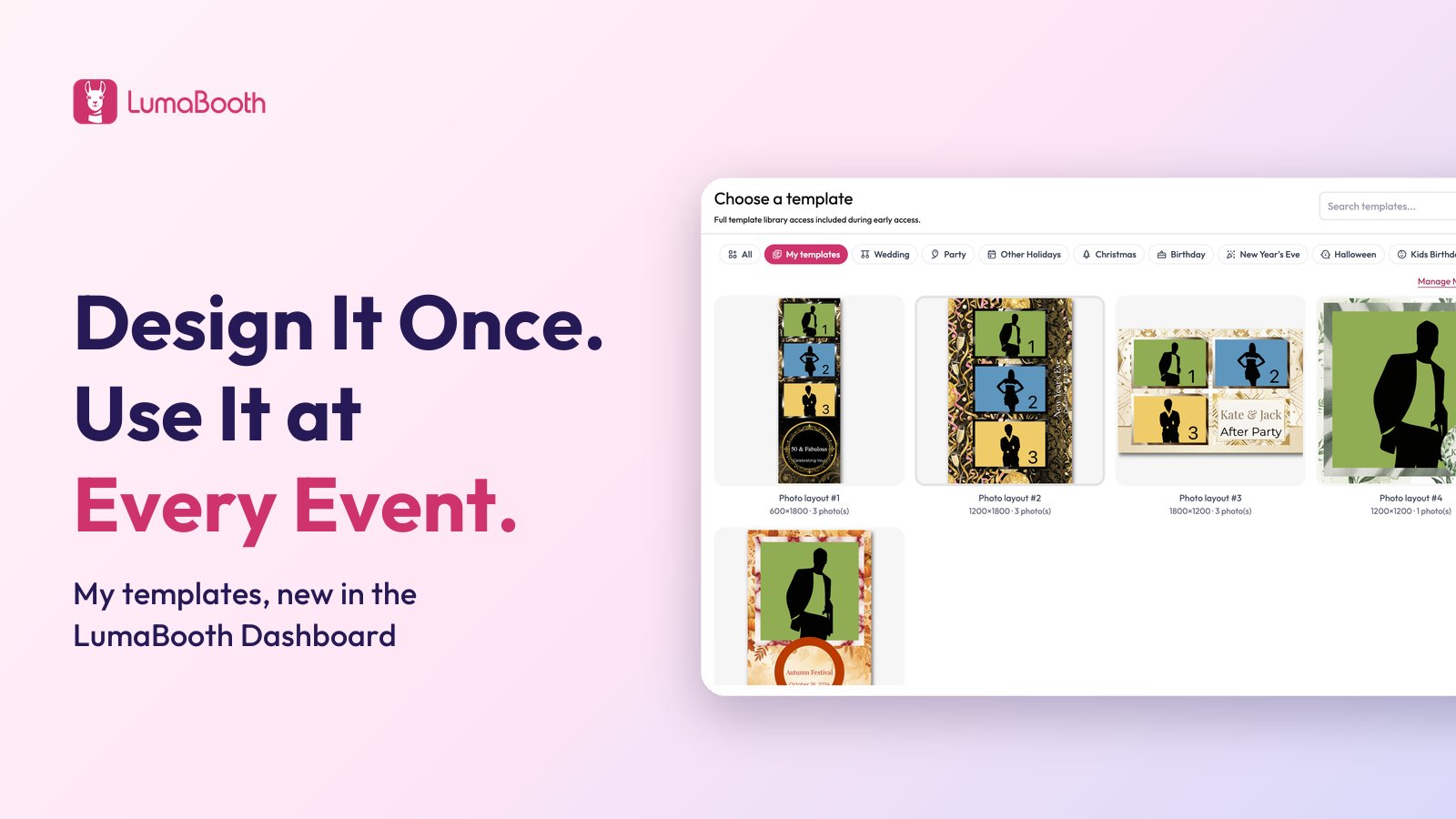
You spent an evening getting that photo strip just right. The fonts, the frame, the couple’s colors. Then the next booking comes in and you are building it all over again.
Not anymore. My templates is new in the LumaBooth Dashboard: your own library of photo layouts, overlays, start screens and AI prompts, saved once and ready for any event. It is live now at dash.lumabooth.com and works with LumaBooth on iPad, iPhone, Mac, Android and Windows. No app update needed.
Save Your Best Work in One Click
Open any event and look for Save to My templates. You will find it:
- Under the preview of a photo layout
- On GIF, 360/Slow-mo and video overlays
- In the Screen Editor, beside Download, for your start screen
- Next to Generate preview on a custom AI prompt
One click and the design is in your library. A short message confirms it and shows how much room you have left.
Your Designs Come First
Next time you set up an event, My templates is the first category in the photo layout, overlay and start screen pickers. Your signature look is right there before you scroll through anything else.
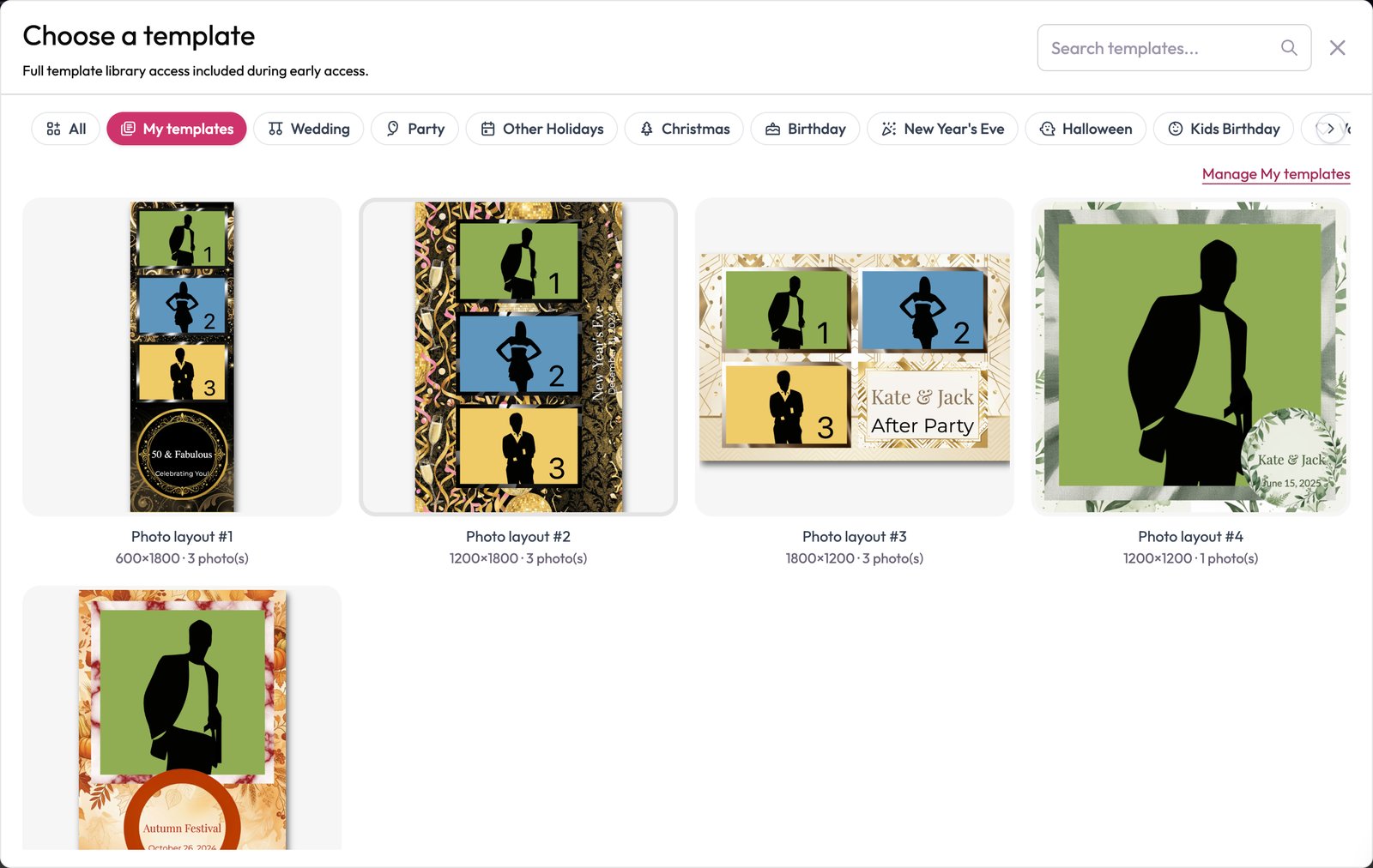
Picking a template copies it into the event. Change the names, the date or the colors for tonight’s party and your saved original stays exactly as you left it.
LumaBooth also keeps things fitting properly:
- Overlays are only offered when they match the shape of what you are capturing
- Start screens are resized to fit the screen of the event you apply them to
Your AI Prompts, Ready to Go
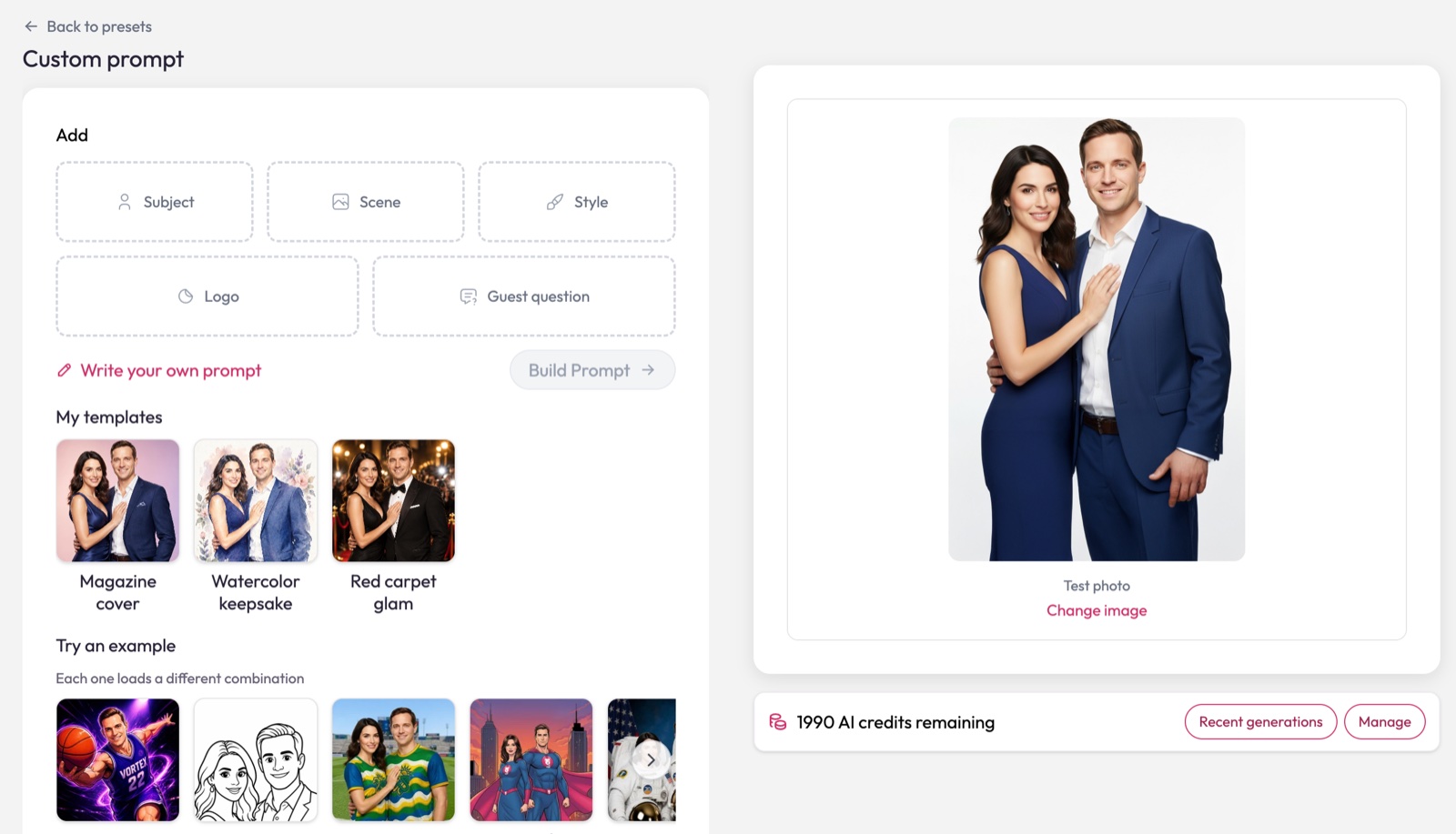
Found the perfect custom prompt for AI Portraits? Save it. Your saved prompts appear at the top of the Custom prompt screen, thumbnail and all. Add one to an event in a click, or use it as the starting point for a new prompt without writing it again.
Keep Your Library Tidy
Open the profile menu, choose Settings, then My templates. There is a tab for each type, and you can:
- Rename a template so you can find it later
- Drag templates into the order you like. The pickers follow the same order
- Delete the ones you no longer need
If you save a design that is already in your library, LumaBooth asks whether to replace the saved copy or keep both.
How Many Can You Save?
Every account can save up to 5 templates of each type: 5 photo layouts, 5 overlays, 5 start screens and 5 AI prompts. On the fotoShare Cloud Business plan that grows to 100 of each type.
Start Your Library Today
My templates is available now in the LumaBooth Dashboard for every account. There is nothing to install and no app update needed. Sign in at dash.lumabooth.com, open an event you are proud of, and save your first template.
You asked for this one on our feedback board, and we loved building it. Thank you for helping shape LumaBooth.