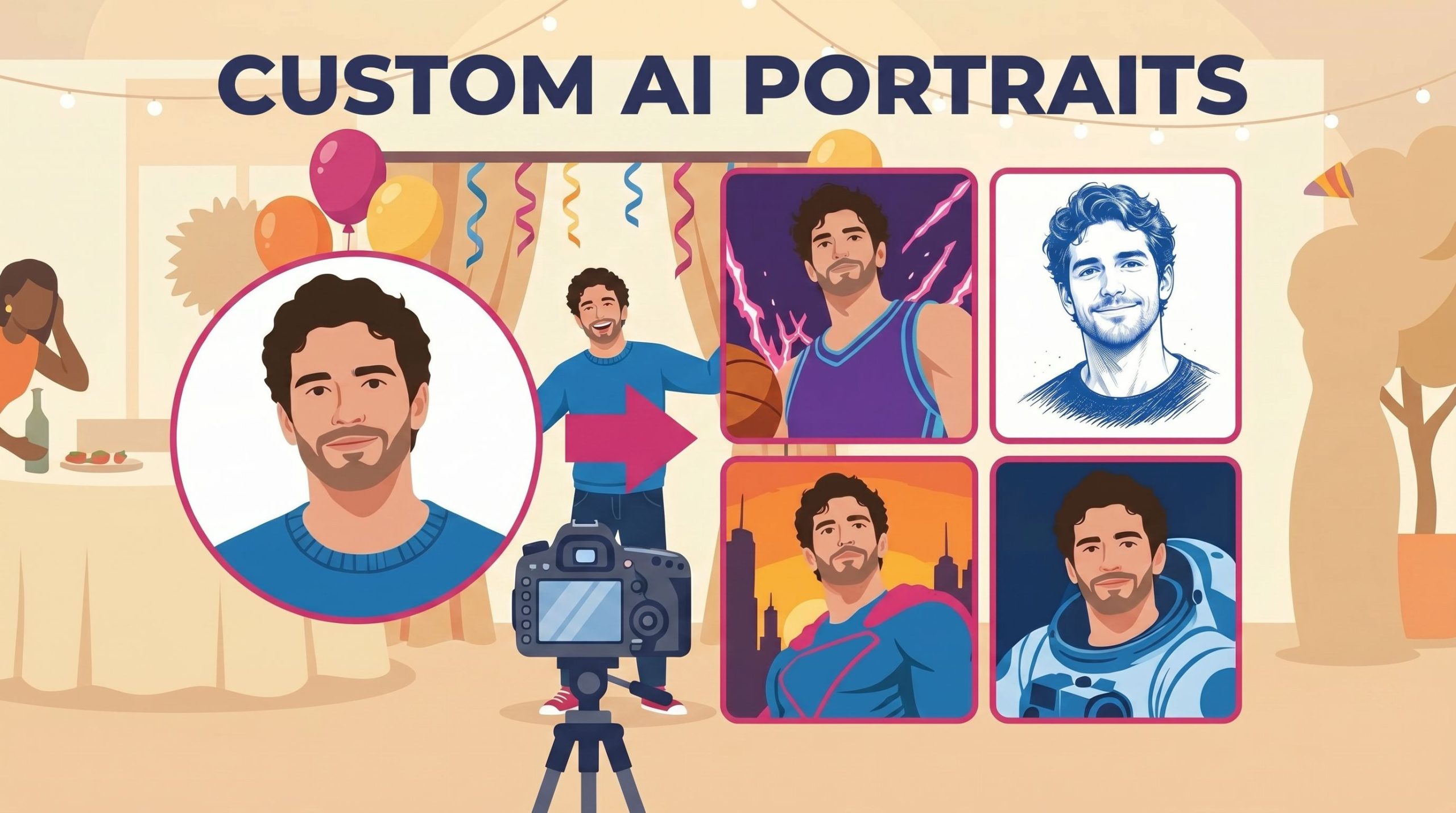
AI Portraits have been the feature your guests talk about for weeks after the event. With this release, they get a lot more powerful, and they land on every device you run. You can now build any look you can imagine, and put a guest’s name right inside the image, whether your booth is on Windows or an iPad.
This drops across the platform at once: LumaBooth for Windows v8.1.28 and LumaBooth for Apple v5.1, both available now. Same feature, same guest experience, whichever device you carry to the gig.
Until now, AI Portraits meant choosing from our library of styles. That library is great, and it is not going anywhere. But every operator eventually hits the same wall: the client wants something specific. Their brand. Their event theme. A look nobody has a preset for.
This release tears that wall down. Two new capabilities sit at the center of it: Custom AI Prompts and per-guest personalization. Here is what they do and how to use them.
Custom AI Prompts: If You Can Describe It, You Can Build It
You can now write your own prompt to generate exactly the look you want, on top of our existing AI Portrait and Art Style presets. Type what you want, drop in reference images, and the booth produces it.
Think about what that means for a working operator. A wedding with a soft watercolor theme. A kids’ birthday where every guest becomes a superhero. A corporate activation where attendees wear the company’s brand colors. A sports bar event where everyone gets a trading-card portrait. You are no longer limited to what we thought to build. You build it on site, for the room you are in.
A prompt is assembled from a few simple parts, and you only use the ones you need:
- Subject — what the guest becomes. “A superhero.” “Basketball player mid-action.” “Head-and-shoulders caricature.”
- Scene — where they are. “City skyline at sunset with cape billowing.” “Darkened court with a single dramatic spotlight.”
- Style — how it looks. “Comic-book illustration, bold ink.” “Cel-shaded sports art with motion lines.” “Bold black outlines on plain white, no shading.”
- Logo — drop in a brand mark and it gets woven into the artwork, perfect for sponsored activations.
You can type each part, or upload a reference image for it. Want the jersey to match the client’s exact kit? Upload a photo of it. Want the scene to be their actual venue? Upload that too.
Personalization: Put the Guest in the Picture, by Name
This is the part that turns a cool photo into a keepsake. You can now attach guest questions to a custom prompt, and the answers flow straight into the generated image.
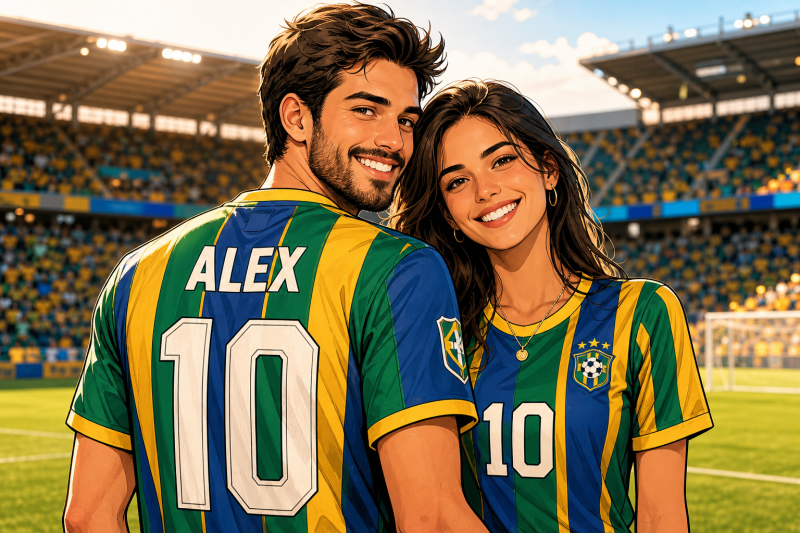
Ask a guest for their name and it appears on the jersey. Ask for a number and it goes on the back. Ask for their favorite team and the colors follow. The portrait stops being “a superhero” and becomes “a superhero named Sarah.” That is the difference between a photo a guest glances at and a photo a guest frames.
A few questions you might wire into a single prompt:
- Name printed on a personalized sports jersey
- Jersey number on the back of the kit
- Favorite team or colors driving the whole palette
- Favorite animal as a sidekick or theme
- Chosen theme letting one prompt branch into many looks
One custom prompt, set up once, produces a personalized result for every single guest who steps up. You configure it before doors open and the booth handles the rest all night.
Close-up of a personalized soccer jersey portrait with a guest name and number rendered into the fabricPersonalization in action. The name is not a sticker on top, it is part of the artwork.
Where Do I Even Start? We Built You Examples
Here is the honest tension with a feature like this. Endless possibility is exciting, and it is also paralyzing. Hand someone a blank prompt box and most people freeze. So we seeded the experience with ready-made examples you can load with one tap, study, and remix. Find them all on the LumaBooth Dashboard, Open or create Event, AI Portraits, Custom Prompt.
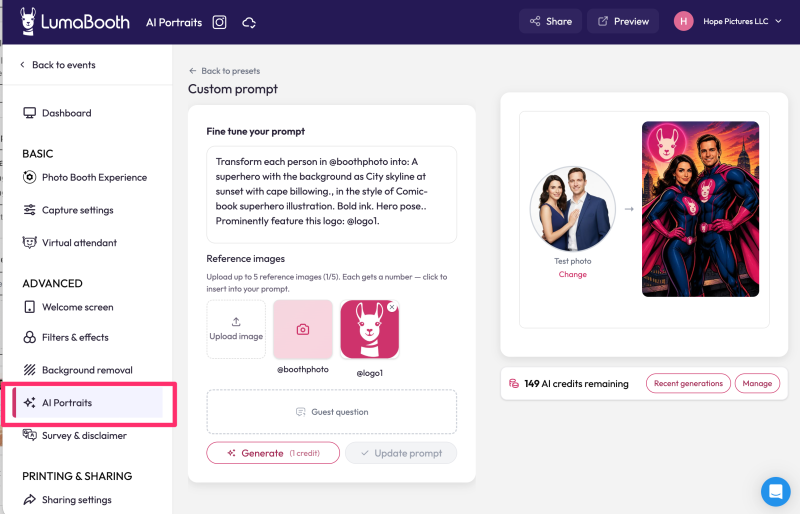
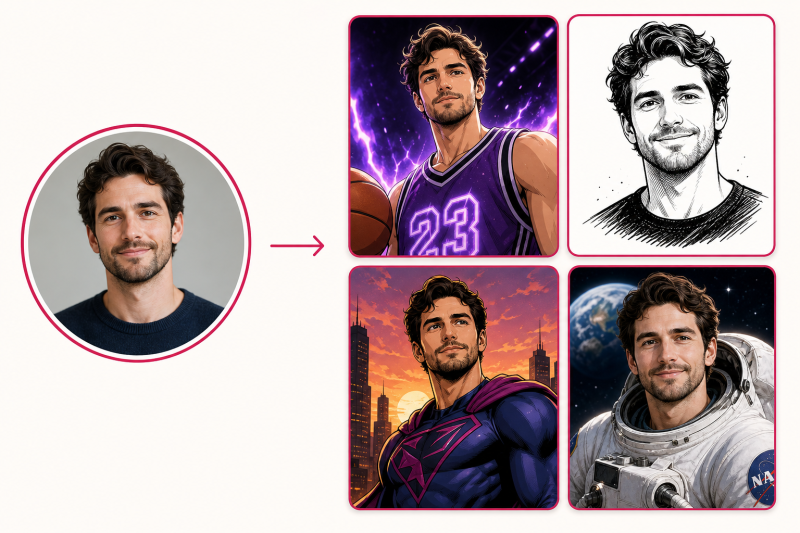
Each example loads a different combination of Subject, Scene, and Style so you can see exactly how the pieces fit together, then change one part and watch the result shift:
Anime Basketball
Guest becomes a cel-shaded basketball star mid-dunk, magenta and violet aura, glowing rim light, motion lines.
Line Art
Clean black-outline caricature on plain white. Stylized, exaggerated, no shading. Great for printing.
Cartoon Soccer
Guests in matching team kits on the pitch. Drop in jersey and stadium references to dial it in.
Captain Llama
Comic-book superheroes against a city skyline at sunset, capes billowing, with a brand logo on the chest.
Astronaut
Guests suited up as astronauts with the flag behind them and helmets in hand. Pure crowd-pleaser.
Your Own
Start from any example, swap the Subject or Style, add a guest question, and you have something nobody else offers.
Use them as training wheels for your clients too. Show a couple the Captain Llama or Astronaut result during the booking call and watch how fast the conversation moves. Then tell them you can build one around their exact theme.
For operators, this is a pricing conversation. A custom, personalized AI experience built around a client’s theme is not a standard photo booth add-on. It is a premium upgrade you can charge for, and a reason a client books you over the booth down the street.
See it in action
The Rest of the Release
Custom AI Portraits headline both updates, but a stack of refinements ships alongside them to keep events running clean. A unified Session Gallery, a refreshed guest-screen font, and steadier syncing land on Windows and Apple alike.
A single Session Gallery on the sharing screen
The separate photo, print, and GIF thumbnails are gone. In their place is one polished Session Gallery button that opens a full preview of everything captured in the session, photos, prints, GIFs, boomerangs, and videos, in one place.
Quality and reliability
- Photos are cropped more intelligently before AI generation, matching the quality you see on LumaBooth for Apple.
- Events now load and launch even when the computer is offline.
- SMS sharing is more reliable across devices by always saving the country code setting.
- Background network discovery is steadier, eliminating intermittent local-network errors.
Windows (v8.1.29) Improvements
- Guest screens get our new font for a cleaner, more modern look.
- Fixed processing and countdown backgrounds showing grey instead of black on some displays.
- Fixed a “video too short” error with Canon cameras in RAW+JPG mode.
- Fixed start-session camera icons missing on events created in the iOS app.
- AI Portrait buttons now translate correctly when you switch the app’s language.
- More reliable cashless payments with better diagnostics on failed transactions.
Apple (v5.1) Improvements
- USB webcam support on iPad improved, correct orientation, mirroring, and hardware names on iPad with USB-C running iOS 17+.
- Per-event print settings now sync via the cloud, so print configuration follows the event.
- Events sync more reliably after Wi-Fi interruptions, so overlays and settings survive a dropped connection.
- Resolved crashes when opening events created on older Windows versions, and when duplicating events.
How to Update
iPad/iPhone/Mac: LumaBooth for Apple 5.1 is available now. If you are an existing subscriber, just go the Apple App Store on your device, search for LumaBooth, Update.
Windows: LumaBooth for Windows 8.1.29 is available now. If you are an existing subscriber, just update by going to Help, Check for Updates and everything carries over automatically.
New here?
Start your free trial and see what your booth can do.
Download LumaBooth